Does your music sound lacking in bass or harsh in vocals? The problem might not be with the music, but with your Spotify equalizer settings.
The right EQ settings can make the same song sound completely different—more impactful bass and clearer vocals.
In this article, I'll first show you how to access the Spotify equalizer on different devices. Then share the best Spotify equalizer settings for various music genres and 2 best Spotify equalizers for different devices.
Part 1. Understanding Spotify Equalizer
1 What Is Spotify Equalizer?
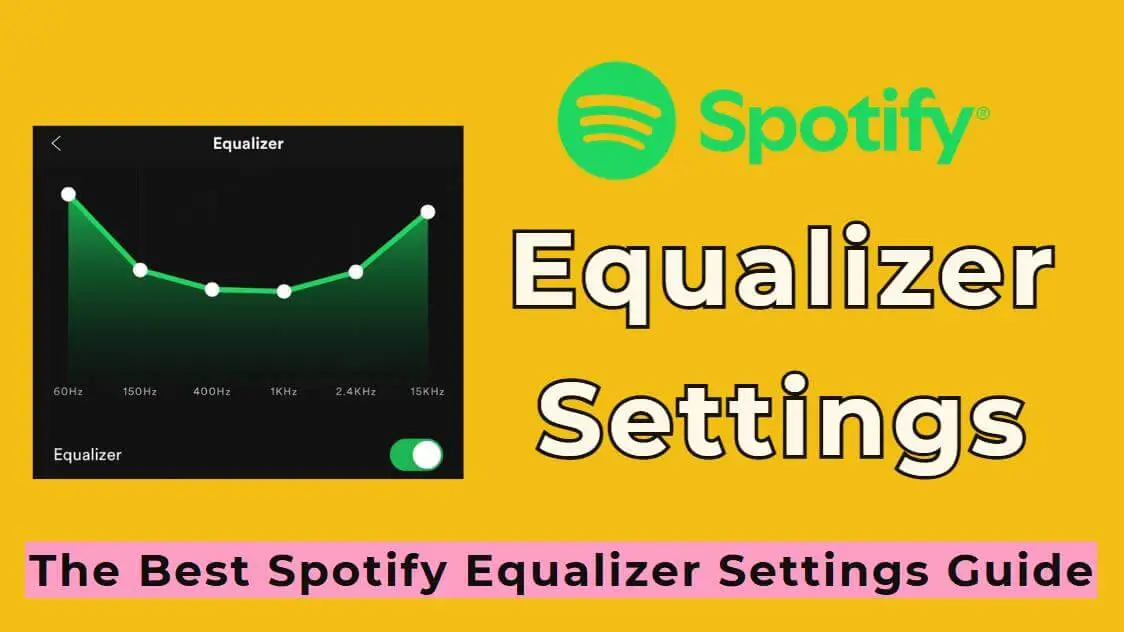
Equalizer is an audio tool that allows you to adjust the volume of different frequency ranges. The Spotify equalizer is an audio adjustment tool built into Spotify, enabling you to personalize the sound effects of music and podcasts.
Boost Bass: Boosts the 60 Hz - 250 Hz.
Adjust Mid: Controls the 250 Hz - 4kHz.
Control Treble: Adjusts the 4 kHz - 16 kHz.
2 Accessing the Equalizer on Different Devices
1. Open Spotify Equalizer on iOS
Step 1 Open Spotify and tap your profile picture in the top left corner. Select Settings and privacy.
Step 2 Click playback, then select Equalizer.
Step 3 If it's off, turn the equalizer on.
Step 4 You'll see several preset options and a manual adjustment interface. You can choose a preset or freely adjust the slider.

2. Open Spotify Equalizer on Android
Step 1 Open Spotify and tap your profile picture in the top left corner. Select Settings and privacy.
Step 2 Choose playback, then click Equalizer.
Step 3 If this is your first time using Spotify, you may be prompted to "Use your device's equalizer" or "Use Spotify's built-in equalizer." It's recommended to choose the latter.
Step 4 Turn on the equalizer switch, then choose a preset or adjust manually.
- Tips
- The EQ interface may vary slightly across different Android devices.
- If your Android device has a built-in equalizer, any changes you make will affect all audio apps, not just Spotify.
3. Open Spotify Equalizer on PC
Step 1 Open Spotify on Windows or Mac, then click your profile icon. Select Settings.
Step 2 Scroll down to Playback and turn on Equalizer.
Step 3 Once turned on, you can choose from a list of preset sound effects or drag the dots on the equalizer to adjust the sound.

Alternatively, you can choose third-party software to configure it. I will recommend the best Spotify equalizer for Windows and Mac users in Part 3..
Part 2. Best Spotify Equalizer Settings by Music Genre
Below are my best Spotify equalizer settings for various music genres, compiled after extensive testing. These settings are based on Spotify's standard 6-band EQ (60Hz, 150Hz, 400Hz, 1kHz, 2.4kHz, 15kHz).
1. Rock
Rock emphasizes electric guitar, powerful drums, and strong vocals. Therefore, simultaneously boosting both bass and treble can make rock music more impactful while maintaining the bright tone of guitar.
60Hz: +3dB
150Hz +5dB
400Hz +1dB
1kHz +3dB
2.4kHz +1dB
15kHz +2dB
2. Pop
Pop emphasizes clear vocals and dynamic rhythms. Extreme EQ adjustments are not required.
60Hz: +2dB
150Hz +2dB
400Hz +1dB
15kHz +4dB
3. Hip-Hop
The soul of hip-hop is powerful bass and clear vocals. The low band need to be enhanced to make the 808 bass impactful, while ensuring the rapper's voice isn't masked.
60Hz: +4dB
150Hz +3dB
1kHz +1dB
2.4kHz +3dB
15kHz +1dB
4. EDM
EDM demands extreme bass and crisp treble. It emphasizes the clarity of sub-bass, kick, and synth.
60Hz: +5dB
150Hz +3dB
400Hz -1dB
1kHz +2dB
2.4kHz +4dB
5. Jazz
Jazz is characterized by the natural tone of its instruments and the subtle details of its playing. Excessive adjustments are unnecessary.
60Hz: +1dB
150Hz +2dB
400Hz +3dB
1kHz +1dB
6. Classical
Classical music requires the most natural and balanced sound to showcase the true effect of a concert hall. A light boost in the mids and highs helps you hear strings, piano, and orchestral layers clearly.
60Hz: -2dB
150Hz -2dB
400Hz -1dB
1kHz +3dB
2.4kHz +2dB
15kHz +2dB
Part 3. 2 Best Spotify Equalizer for Different Devices
If you want to use third-party software to improve the sound quality of Spotify, these 2 equalizers are excellent choices.
1 Equalizer APO (Windows)
Download: https://equalizerapo.com/
Equalizer APO is a powerful open-source equalizer that runs on Windows systems. It's not an application-specific EQ, but rather processes the audio of the entire system. This means it will affect the sound of all applications, including Spotify, YouTube, games, and more.

- Supports precise frequency band adjustment of 31 bands or more.
- Can save different configurations for different audio devices.
- Provides advanced functions such as filters, Q-value adjustment, etc.
- Import professional EQ curve files.
- Supports multi-channel surround sound systems.
How to get best Spotify equaliser settings with Equalizer APO?
Step 1 Visit the Equalizer APO website and download the latest version.
Step 2 Open the configuration tool and select the audio device (headphones/speakers) to which you want to apply the EQ.
Step 3 Open Spotify and play music.
Step 4 Adjust the frequency bands and filters in real time within Equalizer APO as needed. You can create multiple profiles.
2 eqMac (Mac)
Download: https://eqmac.app/
eqMac is a user-friendly, system-level equalizer for Mac. It also affects the audio output of all applications, including Spotify. Its interface is clean and simple to use. It also offers two EQ modes to meet the needs of different users.

- Simple and user-friendly interface.
- Supports saving multiple configuration files.
- 10 band equalizer for precise frequency control.
- System-level audio adjustment suitable for all applications.
How to get best Spotify equaliser settings with eqMac?
Step 1 Visit the official website, download and install eqMac.
Step 2 Launch eqMac and follow the beginner's tutorial to set it up.
Step 3 Open Spotify and play your favorite music.
Step 4 Click eqMac in the menu bar and adjust the equalizer as needed.
Part 4. Use Tunesona to Fine-Tune Your Equalizer
One challenge in adjusting equalizers is that most songs undergo extensive mixing and post-processing, making it difficult to discern the impact of each frequency band on the music. Clean, balanced audio is the best way to test the effectiveness of an equalizer curve.
This is why I recommend using music generated by Tunesona to test and adjust your equalizer.
Tunesona is an AI music agent that allows you to create clear and stable audio simply by chatting with it. You can also use short or detailed prompts to generate the music you want, and it intelligently understands your creative intent.

Why use music generated by Tunesona?
- Consistent Sound Quality Standards. Tunesona generates music with consistent mixing standards that allows you to more accurately judge the effect of EQ adjustments.
- Customizable Test Music. You can let Tunesona generate clean and stable audio, allowing you to comprehensively check whether each frequency band needs adjustment.
- Coverage of Various Styles. You can quickly generate music of different styles, such as rap, country, and phonk. Test the performance of your EQ settings across various genres.
Listen to the Bass EDM created by Tunesona!

Part 5. FAQs About Best Spotify Equalizer Settings
1 What are the best Spotify equalizer settings overall?
There is no single best setting; it depends on the music genre, playback device, and personal preference.
2 Do different headphones need different equalizer settings?
Yes. Different headphones have very different frequency response characteristics. It is recommended to create a dedicated EQ configuration for your frequently used headphones.
3 How do I make vocals clearer on Spotify?
Vocals are primarily in the mid-range. Boosting 1kHz +3 to +4dB makes vocals stand out. If the bass is too heavy and masks the vocals, reduce the 60-150Hz range to +1 or +2dB. Avoid excessive boosting above 2.4kHz, as this will be harsh.
4 Why do my equalizer settings sound different on different songs?
Because each song has different recording and mixing standards. Optimize the settings for the music genres you listen to most often, and manually fine-tune them for other genres.
Conclusion
Adjusting Spotify equalizer settings isn't as difficult as you might think.
You can follow my recommended best Spotify equalizer settings, or use the Spotify equalizer. Remember: the best settings are the ones that are comfortable for your ears.
If you want to test and optimize your EQ, you can try using Tunesona to generate dedicated test tracks.